
To sign a PDF on a Mac, you place a picture of your signature on the page and save a copy. In Sealpad, a free Mac app, you drag the signature image onto the PDF, right-click it and choose Remove White Background, move it onto the line and press ⌘S. Preview, which comes with macOS, also has a Sign button if you would rather create a new signature on the spot.
What you need before you start
- A Mac running macOS 15 Sequoia or later. Sealpad runs on Apple silicon and Intel Macs.
- A picture of your signature. Sign with a dark pen on plain white paper, then scan it or photograph it straight-on in even light. A photo taken with your phone is fine.
- The PDF you need to sign.
If your signature photo has grey paper, shadows or a lot of empty space around it, the guide on removing the background from a signature covers how to get a clean one.
How to sign a PDF on Mac with Sealpad
- Download Sealpad from the download page. The page also explains the one extra click macOS asks for the first time you open it.
- Open the PDF with File > Open (⌘O), or drag the file onto the Sealpad icon in the Dock. It opens as a copy, so the original file stays as it was.
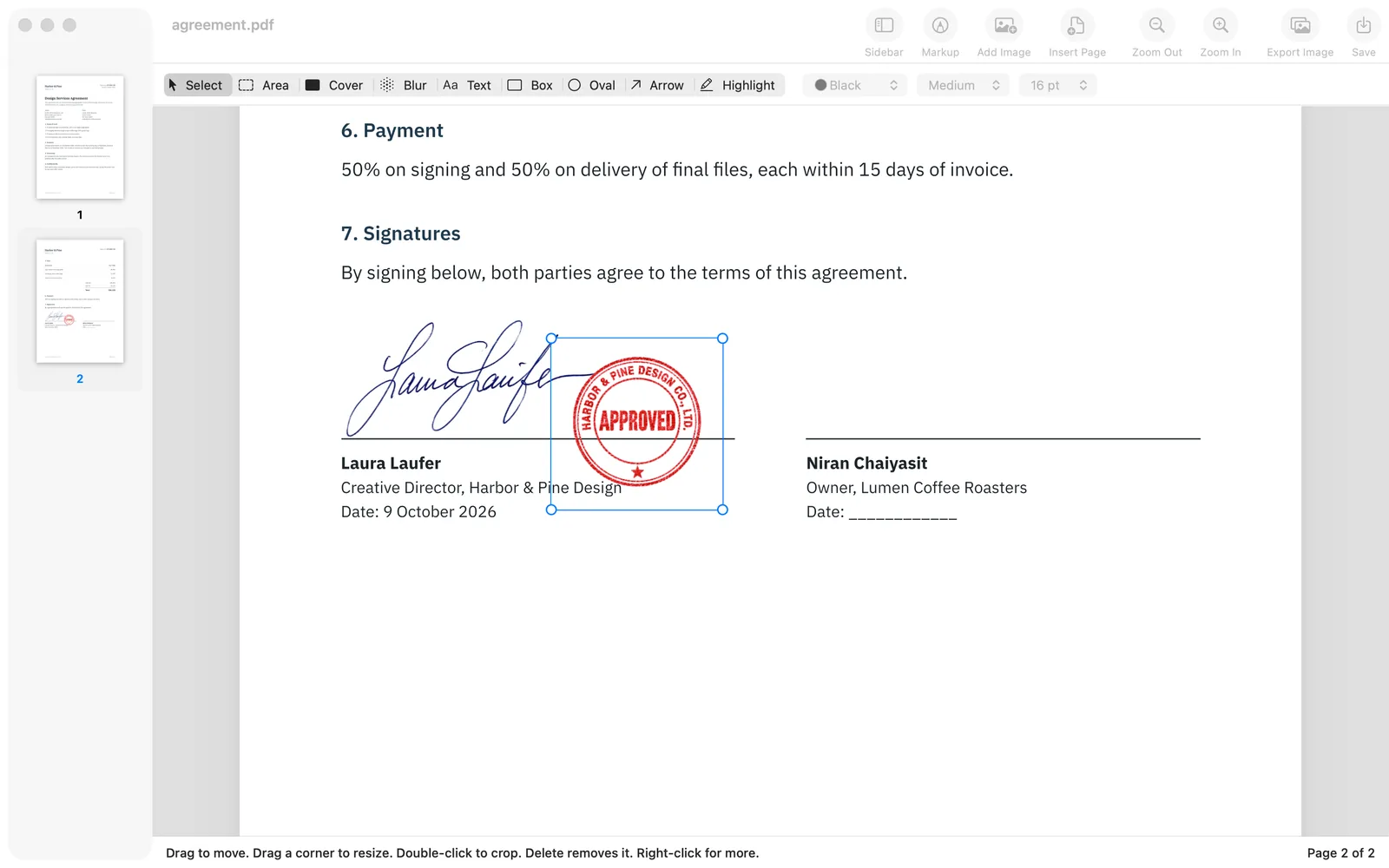
- Add your signature image. Drag the file from Finder onto the page, or select it in Finder, press ⌘C and then press ⌘V in Sealpad. You can also use File > Add Image to Page… (⇧⌘I).
- Right-click the signature and choose Remove White Background. The paper around the ink turns transparent, so the line and the printed name underneath show through.

- Drag the signature onto the signature line.
- Drag a corner of the signature to make it the right size for the line.
- If the picture has a stray mark or a lot of empty paper at one edge, double-click it, drag the crop handles inward and press Return.
- Press ⌘S and choose where to save the signed copy.
The saved file name starts with the date, for example 2026-10-16_contract.pdf, so it is easy to tell apart from the unsigned original.
Add the date and your printed name
Many forms want a date next to the signature. Show the markup tools with the Markup button in the toolbar or View > Markup Tools (⇧⌘A), choose Text, click next to the signature and type the date. Press Esc when you are done. The pop-up menus next to the tools set the color and text size, so you can match the blue of your pen if you like.
Everything you add stays movable and editable until you save. If something lands in the wrong place, drag it, or press ⌘Z to undo the last step.
Sign documents on Mac with Preview
Preview, the PDF viewer that comes with macOS, has a Markup toolbar (⇧⌘A) with a Sign button. It creates a signature using your trackpad, your Mac’s camera or an iPhone. If you sign the occasional form and do not have a signature image yet, that is a quick place to start.
Use Sealpad when your signature already exists as a scan or photo and you want to place that picture, or when you also need to hide an account number on the page before sending it. Preview has no blur tool; Sealpad has Blur and Cover in the same markup toolbar.
Electronic signature on Mac: what an image signature is
A picture of your signature on a PDF is a simple electronic signature: a visible signature on the page, like ink on paper.
It is not a certificate-based digital signature. That kind of signature is attached to the file with a certificate, so software can check who signed and whether the document changed afterwards. Sealpad does not create those, and placing any picture on a page does not turn it into one.
Whether an image signature is enough depends on who receives the document. Some accept it; others ask for a certificate-based signature or for ink on paper. If you are not sure, ask the person who sent you the document before you sign.
Add a company stamp or sign every page
If the document also needs your company stamp, add the stamp image the same way and let it overlap the signature, as it would on paper. With the white background removed from both, the signature stays visible where they overlap. The guide on adding a company stamp to a PDF goes through it step by step.
For a contract that needs your initials on every page, place them once, right-click and choose Repeat on Every Page. A copy lands in the same spot on each page.
Keep your signature on your Mac
A signature image is something you do not want copied around. Sealpad works entirely on your Mac: there is no account, nothing is uploaded and it works offline. Save (⌘S) always asks where to write the file, and the PDF you opened is never overwritten.