To redact a PDF for free on a Mac, cover or blur the text in Sealpad and save a copy. Every page with a Cover or Blur box is saved as an image of the page, so the text underneath is gone and cannot be selected, copied or searched. That is the part that matters: in many PDF apps, a black box is only a drawing on top, and the text is still there to copy out.
Why a black box is not redaction
A typical PDF page holds real text: letters you can select, copy and search. Anything you draw on it, such as a highlight or a rectangle, sits on top of that text as a separate layer.
When you black out text in many PDF apps, the black rectangle is just another drawing on top. On screen the account number looks hidden. In the file, the number is still there. Someone who receives it can drag across the black area, copy, paste into a note and read every digit. Nothing about the file looks wrong until that happens.
Redaction means the hidden text is no longer in the file at all. That is what Sealpad does when it saves.
How Sealpad redacts a PDF
When you save, every page that has a Cover or Blur box is turned into a picture of the page at 300 dpi. The saved page looks the same as what you saw on screen, but it no longer contains text, so the words under your boxes cannot be selected, copied or found with search.
Pages you did not cover stay as normal text. A 20-page contract with one redacted page keeps 19 searchable pages.
The trade-off is on the redacted pages themselves: nothing on them can be selected or searched any more, including the parts you left visible. For a page you are sending to someone else, that is usually what you want.
How to redact a PDF for free on Mac
- Download Sealpad from the download page. It is free, needs macOS 15 Sequoia or later and works offline.
- Open the PDF with File > Open (⌘O), or drag it onto the Sealpad icon in the Dock. It opens as a copy; your original is never overwritten.
- Show the markup tools with the Markup button in the toolbar, or View > Markup Tools (⇧⌘A).
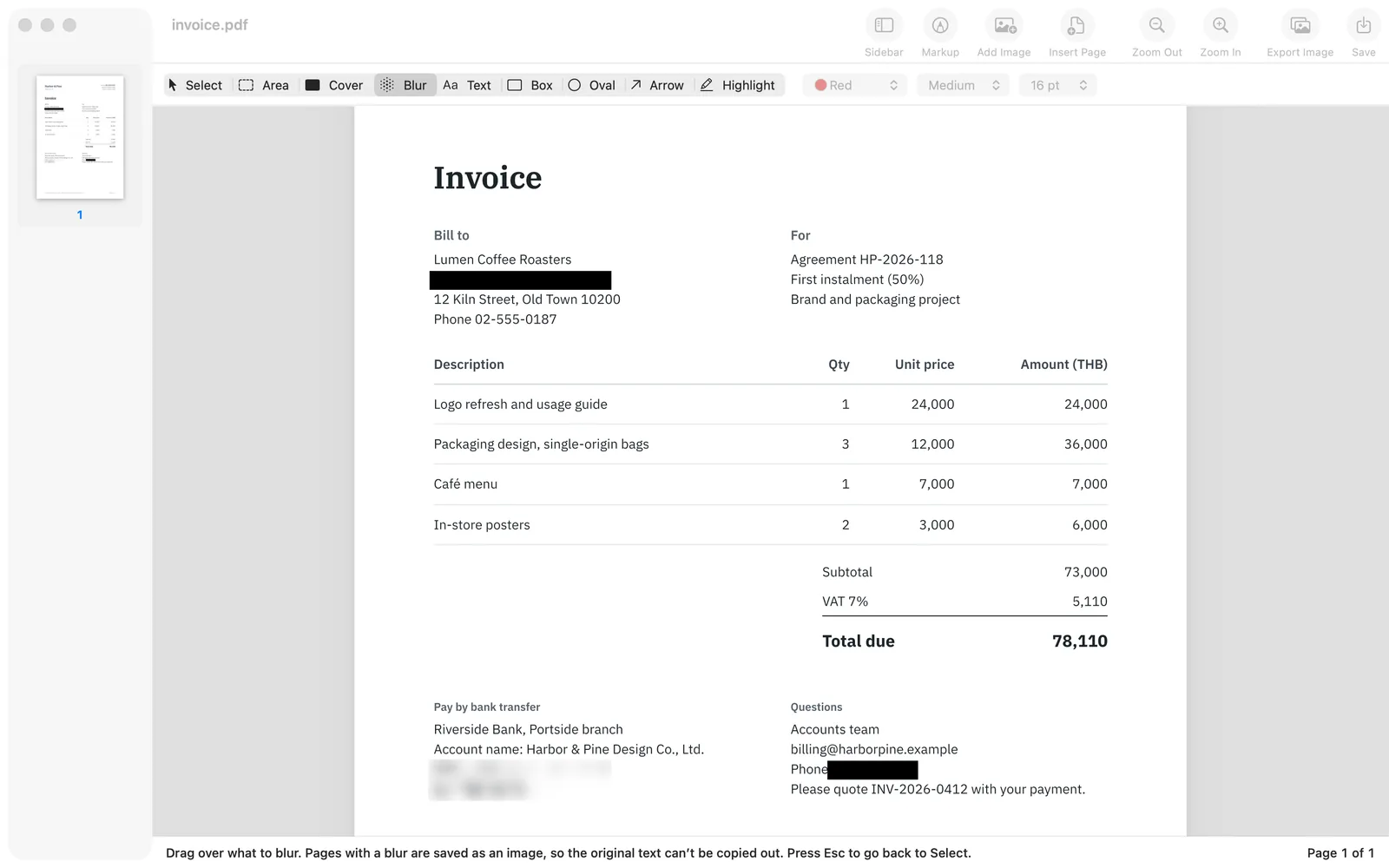
- Choose Cover, then pick black from the color pop-up menu next to the tools. Cover is white until you change it.
- Drag a box over each name, number or line you want to hide.
- To blur instead, choose Blur and drag a box over the text. Whatever is under the box is blurred.
- Look through every page. Names often repeat in headers, footers and signature blocks.
- Press ⌘S and choose where to save. The new file’s name starts with the date, for example
2026-10-16_invoice.pdf.
Until you save, every box stays movable and editable, and ⌘Z undoes any step. After saving, the hidden text is gone from the saved copy only. The original file still contains everything, so make sure you send the new one.
Black out, white out or blur
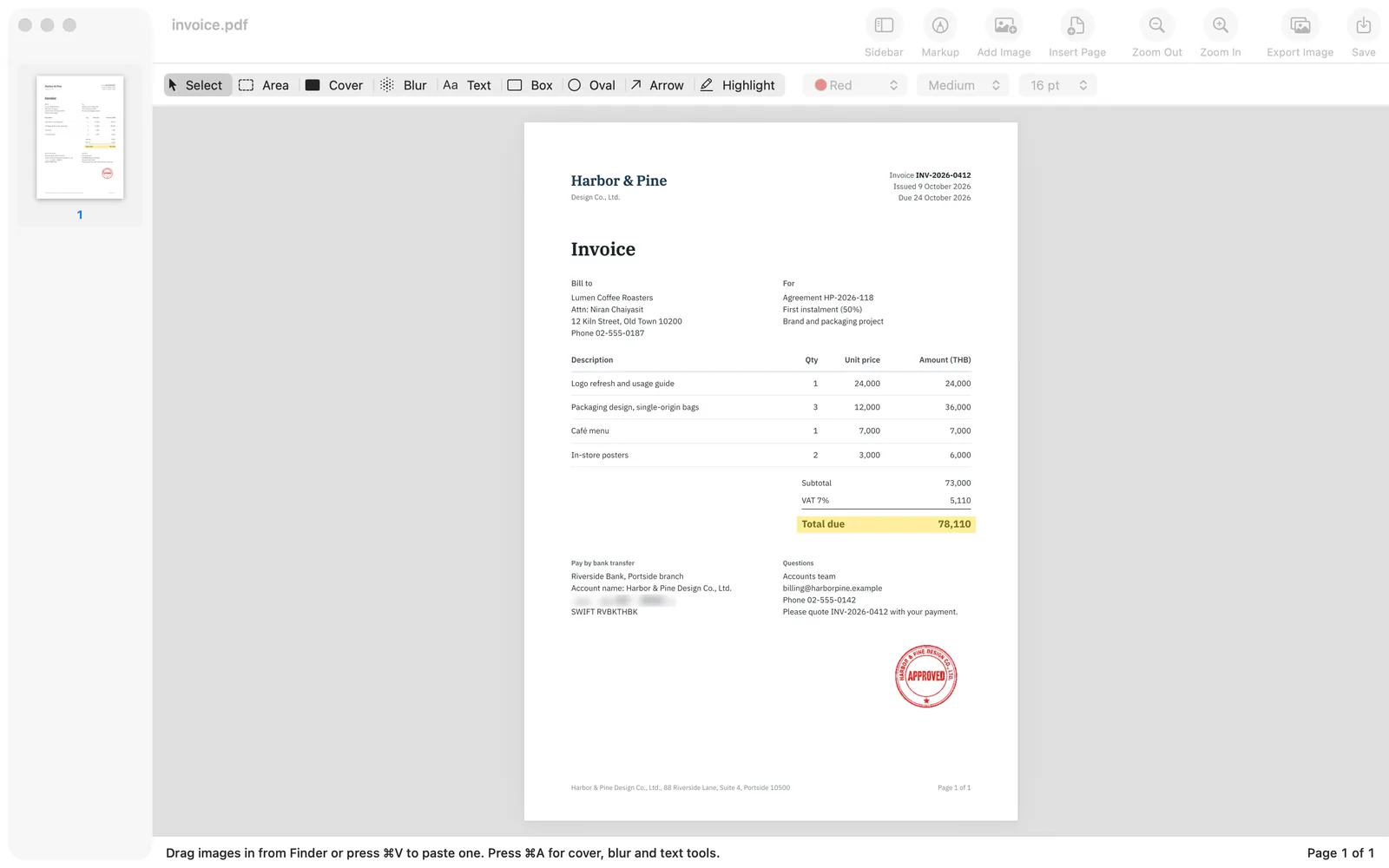
All three remove the text from the saved page. The difference is how the page looks to the person who reads it.
Black out text in a PDF
A black Cover box is the classic redaction look. The reader can see that something was removed and roughly how long it was. Use it for documents where it should be obvious that information was withheld on purpose, such as records you are sharing with a third party.
White out a PDF
Cover draws a white box by default. On a white page the covered area looks blank, so the reader does not see that anything was there. That suits a line you do not want to send at all, or a field you want to clear and fill in again.
Sealpad cannot edit the text that is already in a PDF. To change a word or a figure, white it out with Cover, then choose Text, click on top of the white box and type the new value. Press Esc when you are done. You can change the color and text size from the pop-up menus to match the page.
How to blur text in a PDF
Blur keeps the page looking like a document: the reader can tell there was an account number or an address, but cannot read it. It works well for screenshots in reports or invoices you forward as examples. For short numbers that someone might try to guess from their shape, a solid black Cover hides more.
How to check the saved file
Do this every time, before you send anything:
- Open the saved copy, not the document still open in Sealpad.
- Drag across the text on a page you covered. Nothing should highlight, because the page is now an image.
- Search the file for a word or number you hid. It should not be found.
- Check that the pages you left alone still have selectable text, if you need it.
If the file name itself contains a person’s name, rename it too. Redacting the page does not change the file name.
Redact pictures and screenshots too
Sealpad opens pictures as well as PDFs, so you can blur a name in a screenshot or a photo of a shipping label the same way. The guide on blurring an image on Mac covers photos and screenshots.