
To add a stamp to a PDF on a Mac, open the PDF in Sealpad, drag an image of your company stamp onto the page, right-click it and choose Remove White Background, then drag it into place and press ⌘S. To stamp every page of a contract or quote, right-click the stamp and choose Repeat on Every Page.
Make a stamp image you can reuse
You only need to do this once. If your company already has the stamp as an image file, you can use that and skip ahead.
- Press the stamp firmly on clean white paper. Re-ink it first so the impression is solid, not patchy.
- Scan the sheet, or photograph it straight-on in even light. Keep the shadow of your hand and phone off the paper.
- Leave a little white around the stamp. You can crop it later in Sealpad.
- Save the file somewhere private. A stamp image can be misused just like the stamp itself.
The white paper around the stamp will be removed in the next steps, so the document’s text shows through it.
How to add a stamp to a PDF
- Download Sealpad from the download page. It is free and needs macOS 15 Sequoia or later.
- Open the quote, invoice or contract with File > Open (⌘O), or drag it onto the Sealpad icon in the Dock. It opens as a copy.
- Add the stamp image. Drag it from Finder onto the page, or select it in Finder, press ⌘C and then ⌘V in Sealpad. File > Add Image to Page… (⇧⌘I) works too.
- Right-click the stamp and choose Remove White Background. The paper around the ink turns transparent.
- Drag the stamp to where it belongs, usually over or next to the signature.
- Drag a corner to resize it so it looks the size of a real stamp on the page.
- Press ⌘S and choose where to save. The file name starts with the date, for example
2026-10-16_quote.pdf.
If the stamp image has extra paper or another mark at the edge, double-click it, drag the crop handles inward and press Return. Right-click and choose Reset Crop if you cut too much.
Overlap the stamp with the signature
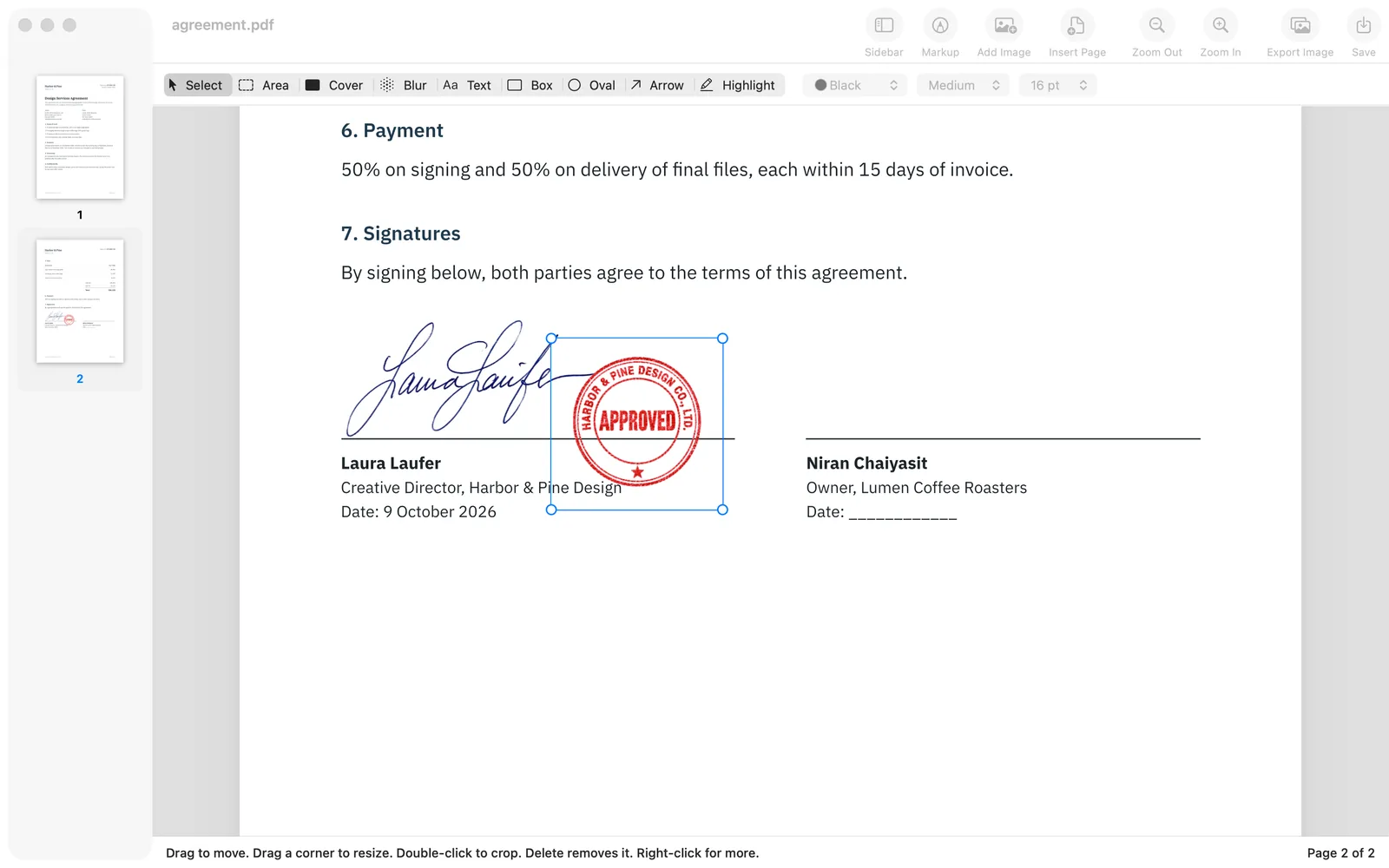
On paper, a company stamp often sits partly over the director’s signature. You can lay out the PDF the same way:
- Place the signature first. The guide on signing a PDF on Mac covers it.
- Add the stamp and choose Remove White Background on it.
- Drag the stamp so it overlaps the end of the signature.
Because the white around the stamp is transparent, the signature stays visible where the two overlap. Make sure Remove White Background is on for the signature as well, or its paper will cover the line underneath.
Whether a document needs a stamp at all, and where it goes, depends on your company’s signing rules and on what the other party expects. Follow those; Sealpad just places the image where you put it.
Stamp every page of a PDF
Contracts and multi-page quotes often carry the stamp on every page, not just the last one.
- Place the stamp on one page and get its position and size right.
- Right-click it and choose Repeat on Every Page.
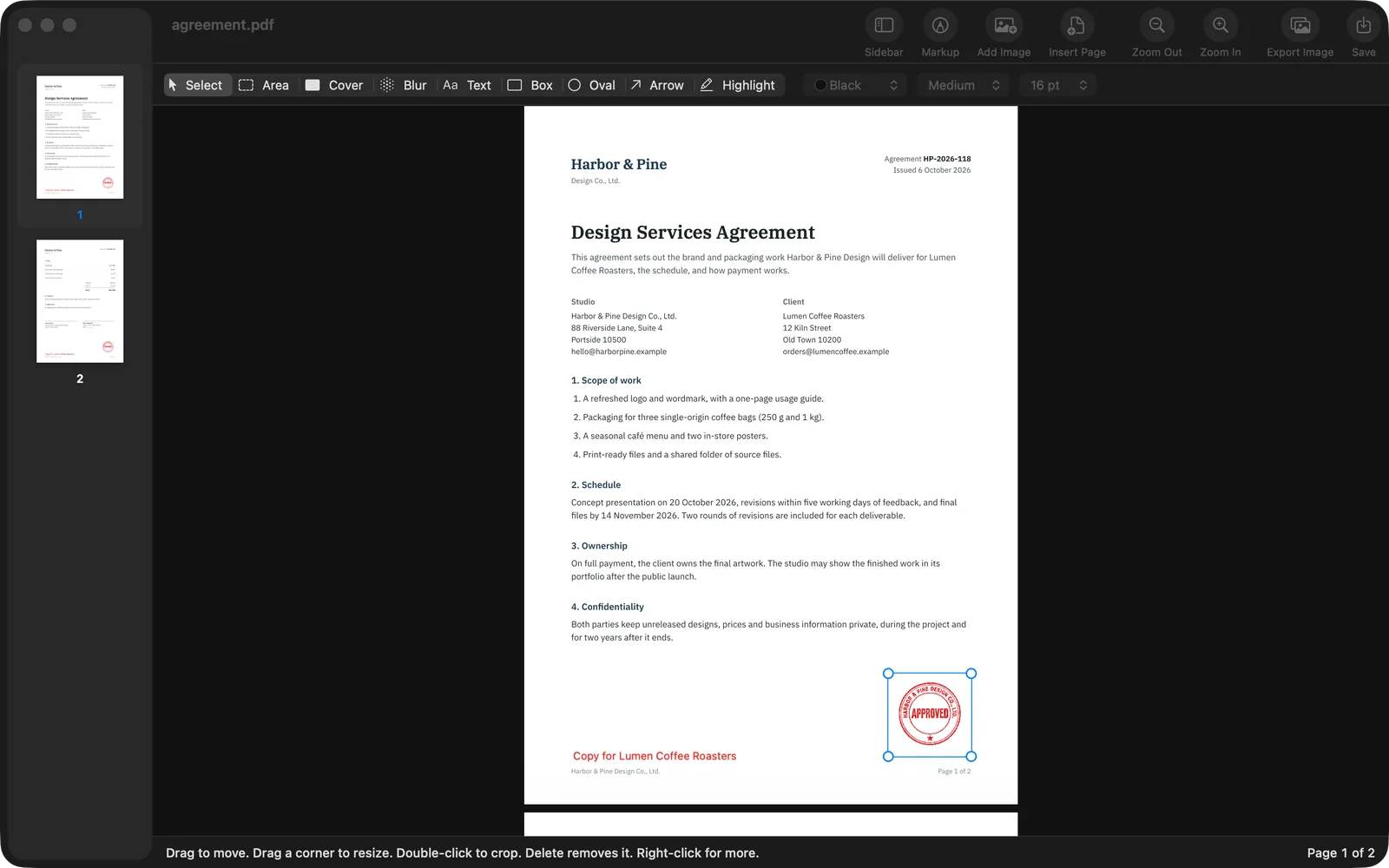
Sealpad puts a copy in the same spot on every page. Each copy can still be moved on its own before you save, for example if one page has a table where the stamp would land.
Text stamps: PAID, APPROVED, COPY
“Stamp” sometimes means a word rather than a seal: PAID on an invoice, APPROVED on a purchase order, or a “Copy for” note on the duplicate you hand to a client.
- Show the markup tools with the Markup button in the toolbar, or View > Markup Tools (⇧⌘A).
- Choose Text, then pick red and a larger text size from the pop-up menus next to the tools.
- Click on the page, type the word and press Esc.
- Choose Box or Oval and draw around the text if you want it to look like a rubber stamp.
- Right-click the text and choose Repeat on Every Page if it belongs on every page.
Keep your stamp private
Sealpad works entirely on your Mac. There is no account, nothing is uploaded and it works offline, so the stamp image never leaves your computer. When you share a stamped document, send the saved PDF, not the stamp image.
The original PDF you opened is never overwritten. Save (⌘S) always asks where to write the stamped copy, and everything stays movable and editable until you save, with ⌘Z to undo any step.
For other kinds of pictures, such as a logo or a product photo, see how to add an image to a PDF on Mac.